Contact your AGD Administrator so that they can do an edit to your user profile before starting this process...
Please use the following steps to get your Microsoft Authenticator connected to your AgendDealer/Salesforce account:
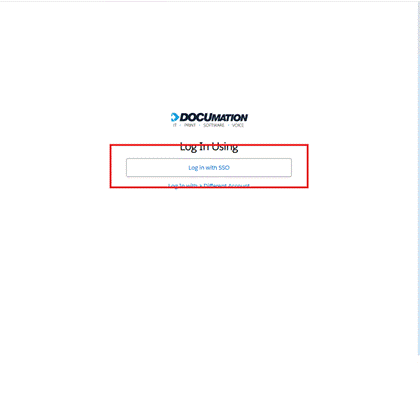
- Click “Log on using SSO.
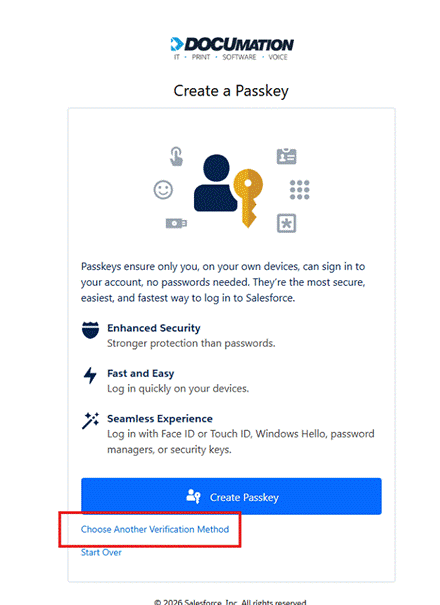
- Click on “Choose another verification method”
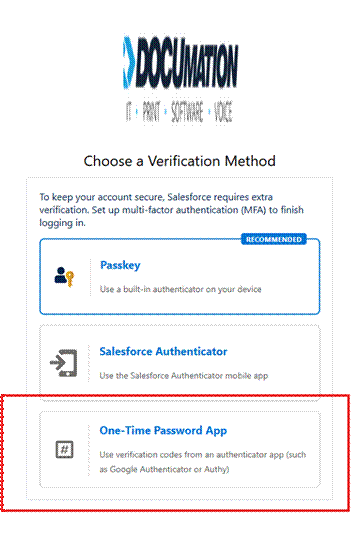
- Click on “One-Time Password App”
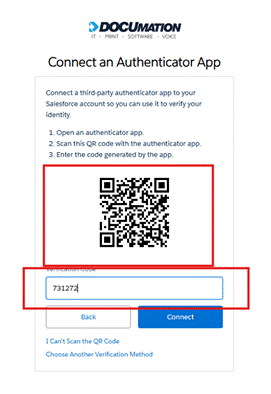
- Open your Microsoft Authenticator app and click on the circle with a QR code icon in the bottom right of the screen.
- Scan the QR code that is displayed on the screen.
- Put in the 6 digit code displayed into the box below the QR code to register that device.
Was this article helpful?
That’s Great!
Thank you for your feedback
Sorry! We couldn't be helpful
Thank you for your feedback
Feedback sent
We appreciate your effort and will try to fix the article